1. Overview
Rotato can now synchronize to your active KaraFun session! This allows you to smoothly manage your singer rotation entirely in Rotato, with KaraFun functioning primarily as a player and song catalog. Singers added to KaraFun's queue (either manually or via Karafun's remote control) automatically get added to the Rotato queue. Playback of the song at the top of Rotato's queue can also now be controlled entirely inside Rotato, meaning you will almost never need to interact directly with KaraFun's queue.
Note that although Rotato synchronizes singers and songs with KaraFun, you still have full control of the rotation order, and can still add non-synchronized singers manually. Also, because Rotato believes in a stable rotation list, it will not remove a singer who has run out of songs on the KaraFun side. Their song list will show as empty until they or the host submit another song for them in KaraFun.
2. One-Time Setup
To begin using KaraFun with Rotato, open the 👤 Account screen from the main toolbar, turn on "Sync To KaraFun Queue", and enter the 6-digit ID of your KaraFun session's remote control. NOTE: For Rotato to work with KaraFun, KaraFun's remote control feature also must be turned on.
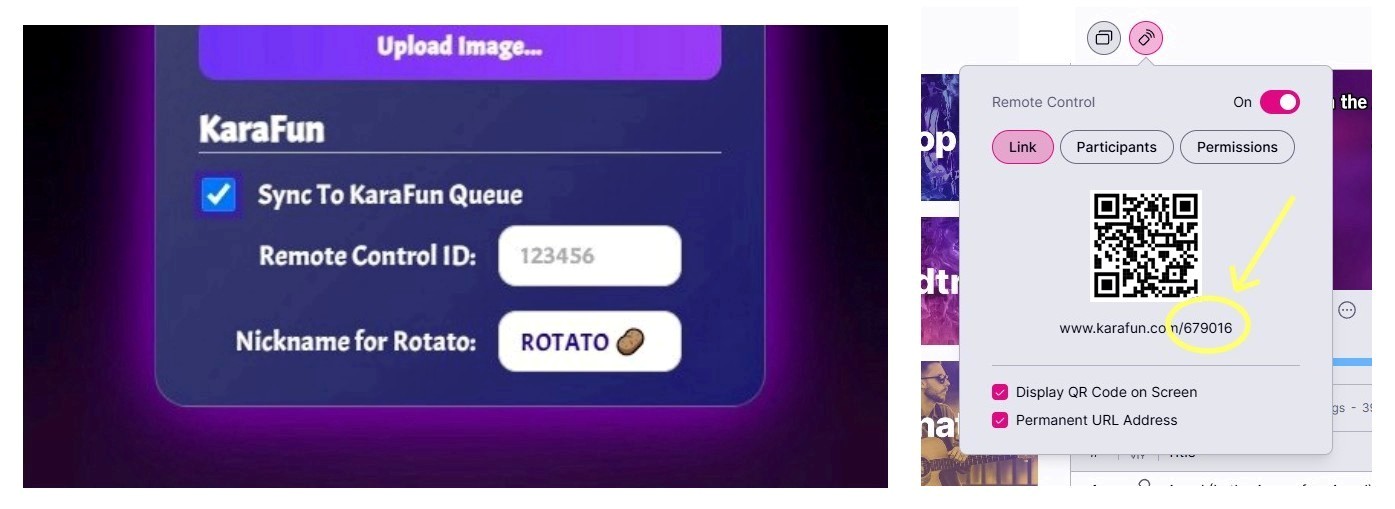
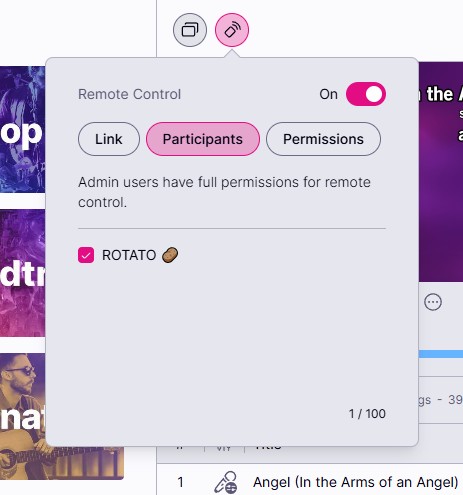
Once you see Rotato appear in the list of connected users, click the checkbox next to it. This gives Rotato "admin" permissions, which allows it to monitor the KaraFun queue, change the order of songs in the queue, and control playback.
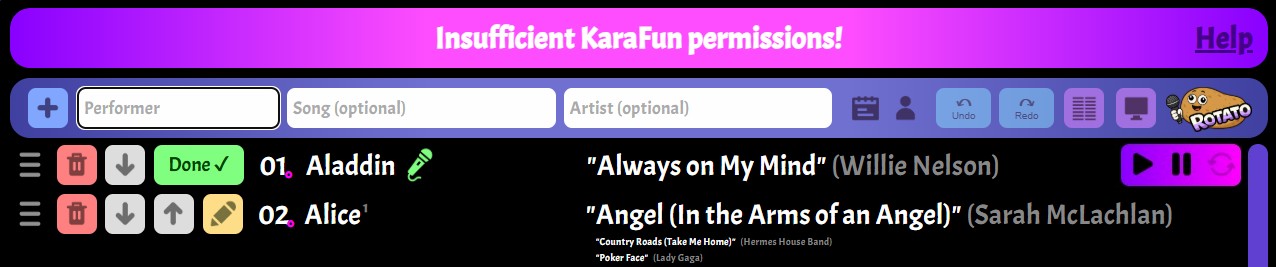
If at any time, Rotato doesn't have the necessary permissions, it will alert you with a warning at the top of the screen. If you see this warning, simply go back to KaraFun and apply the correct permissions (or see Troubleshooting below for further help).
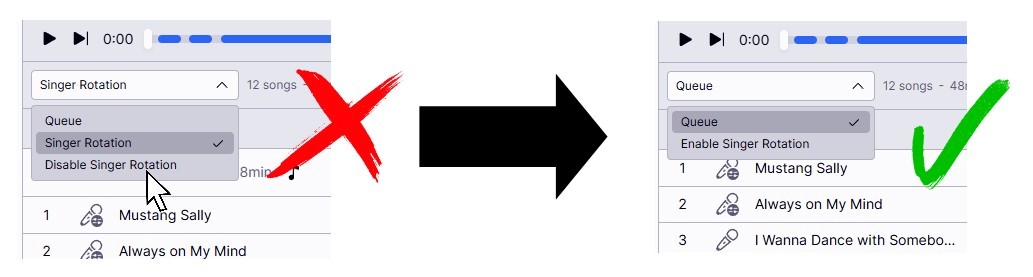
It's also important that KaraFun's new "Singer Rotation" feature be completely disabled, as this changes the way the queue operates, and also severely limits remote control permissions (which KaraFun has confirmed to be a known issue). It's not enough that the queue currently be in "Queue" mode - you will need to disable singer rotation mode completely, as shown below...
BONUS: Rotato and KaraFun do not need to be on the same device for this to work! For example, you could run KaraFun on your Windows laptop, while operating Rotato from your Apple or Android tablet.
3. Synchronized Performers
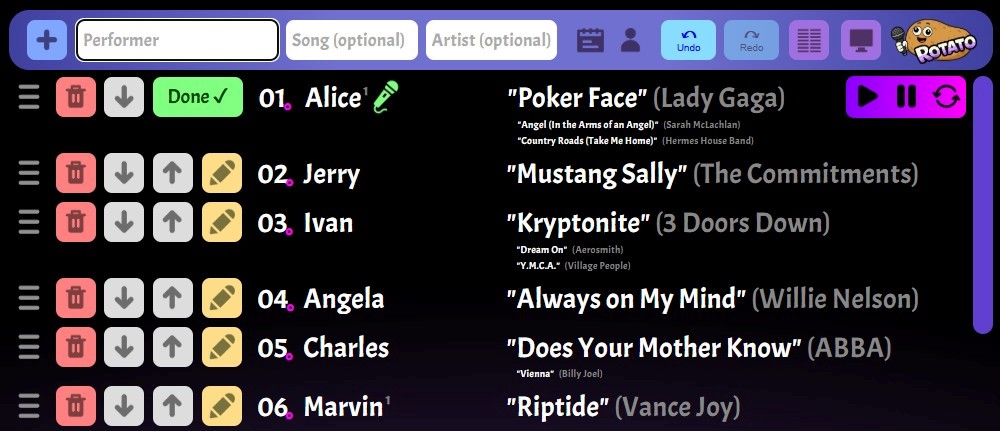
When a singer appears for the first time in KaraFun's queue, they will automatically be added to Rotato's queue. Unlike normal manually-entered singers, this kind of singer is synchronized to KaraFun. Synchronized singers are indicated with a small magenta circle next to their queue position.
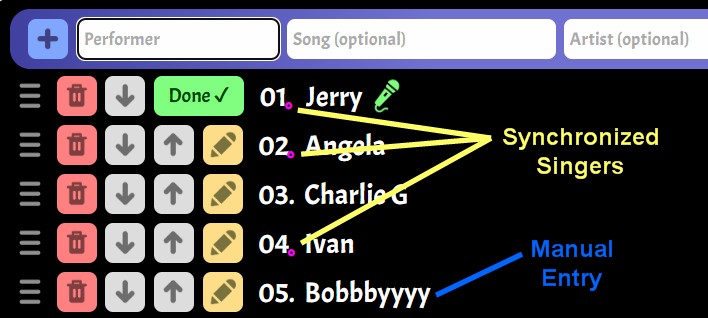
Next to each synchronized singer is a list of the songs they currently have in the KaraFun queue, shown in current queue order (see screen shot at top of this page for an example). Note that the song list cannot be edited in Rotato - it is simply a reflection of what songs that singer currently has queued up in KaraFun.
4. KaraFun Toolbar
To the far right of the top-most song is the KaraFun toolbar. The PLAY button takes the corresponding song in Karafun's queue, moves it to the top, and starts playing it. The PAUSE button pauses playback.
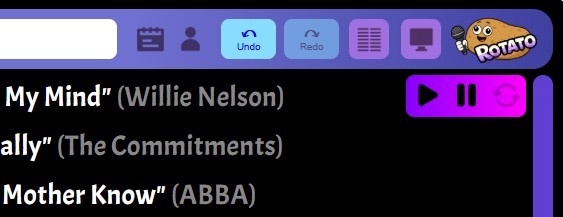
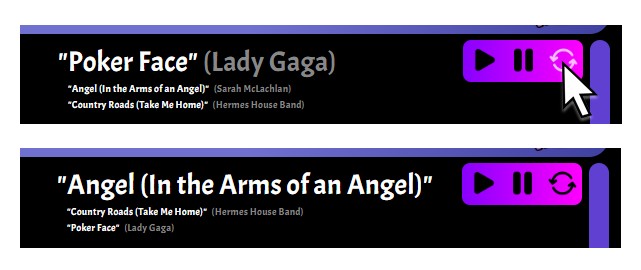
If the current singer has more than one song queued up, the CYCLE button can be used to cycle the relative order of those songs, making a different one appear at the top. This is useful if, for example, a singer comes to the stage but has changed their mind about which of their songs they want to sing next.