1. Introducing... Live Queues!
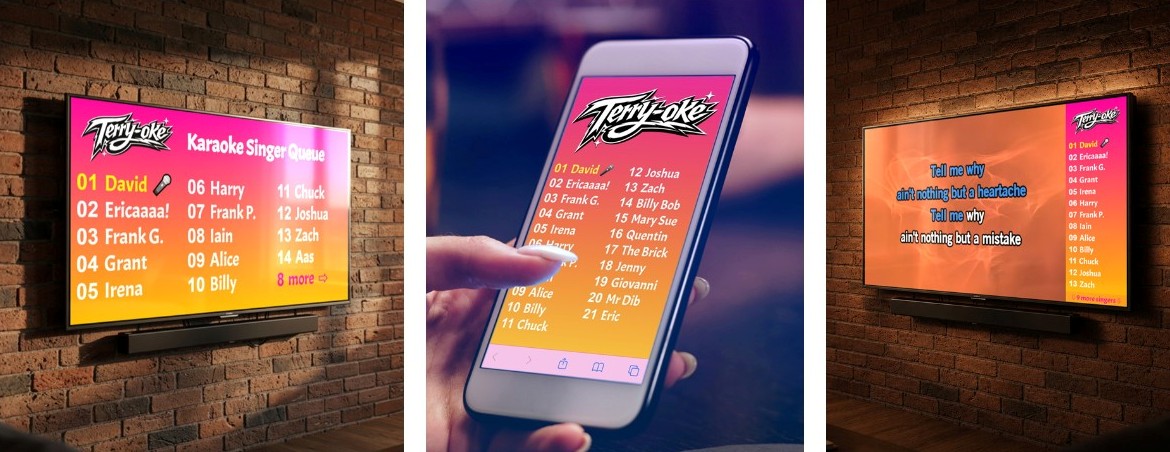
One of the coolest features of Rotato is the ability to display the live performer queue on any web-connected devices (no special app install or network configuration is necessary). In this section we'll show you how to set this up, to enhance the show experience for performers and audience alike.
2. Live Queue URLs
To make a device display a live Rotato queue, open its browser and enter an URL that follows one of the patterns below, subtituting your Rotato user name for "peterg". The two-letter codes determine what style of queue will be displayed. These styles are described in the new few sections.
https://rotato.rocks/q/tv/peterg
https://rotato.rocks/q/sb/peterg
https://rotato.rocks/q/ph/peterg
https://rotato.rocks/q/sb/peterg
https://rotato.rocks/q/ph/peterg
3. "TV" Style
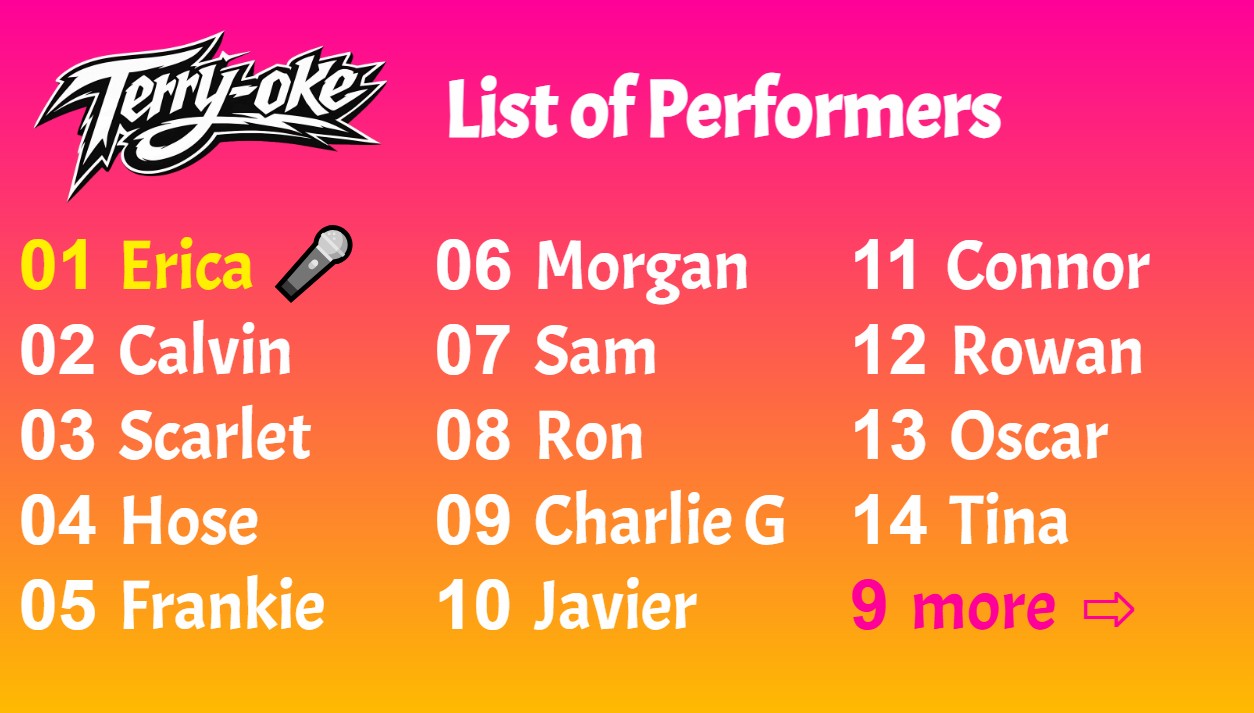
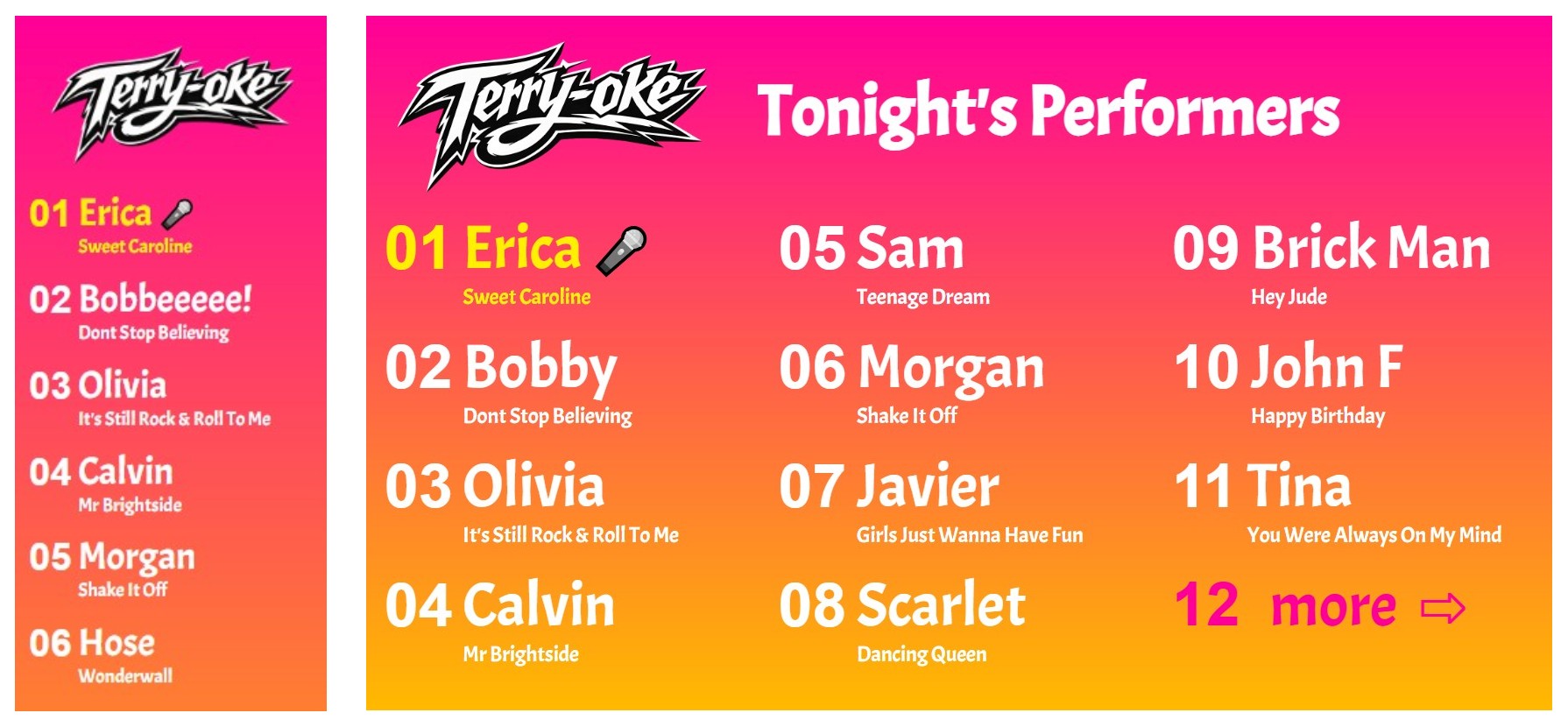
This multi-column full-screen queue is perfect for computer monitors and flat-screen TVs. If the whole queue is too long to be shown, a "more" indicator is added. This style looks best when you put the browser into full-screen mode. Clicking anywhere in the queue will automatically activate this mode.
4. "SIDE-BAR" Style
This single-column vertical style queue is intended to sit alongside other monitor windows, and works especially well alongside karaoke lyrics windows. If the whole queue is too long to be shown, a "more" indicator is added.

To use a side-bar queue effectively, you should turn off regular browser UI such as the address bar and favorites bar. On Windows, this can be done by running the browser in "app mode", as follows...
...remembering to replace "peterg" with your own Rotato user name first! Now save this as desktop shortcut that you can use every time. If you are on an Apple Mac and have Google Chrome installed, the equivalent command is...
/Applications/Google\ Chrome.app/Contents/MacOS/Google\ Chrome --app=https://rotato.rocks/q/sb/petergIf you are on a Mac but don't have Chrome, you can achieve the same effect by navigating to that page in the browser and then using File > Add to Dock. This creates a shortcut in the Dock and the Applications folder that will launch that URL with minimal browser UI.
5. "PHONE" Style
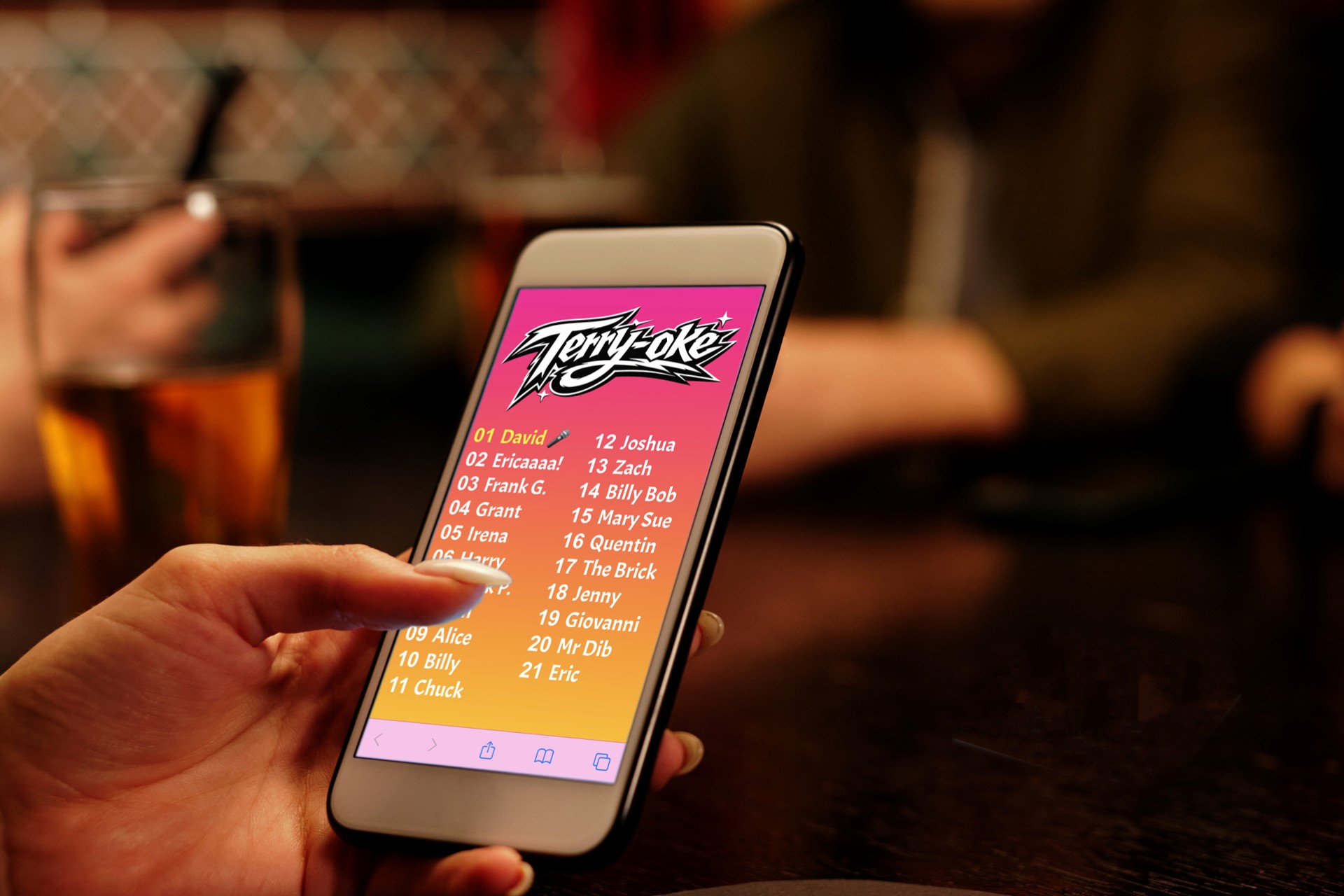
This multi-column style queue is designed to be displayed on smart phones. It displays the entire queue, which the phone user can browse by swiping left or right.
6. Showing Song Titles
To display the title of each singer's next song in the live queue, simply append a "+" to the part of the URL that controls the queue style. For example: https://rotato.rocks/q/sb+/peterg. Likewise use tv+ and ph+ for the TV and phone styles.
7. Customizing the Live Queue Logo
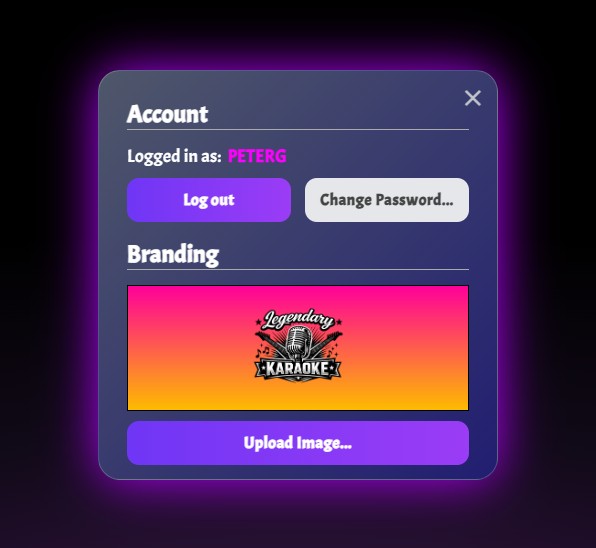
By default, the live queue will show the Rotato logo, but you can replace this with your own logo. Simply log into the Rotato editor, click the 👤 toolbar button to open the Account screen (below), and hit the Upload Image button. Once your custom logo has been successfully uploaded, it will appear in the preview area above the Upload button. Custom logo images can be .PNG or .JPG format, but .PNG is preferred as it supports transparent backgrounds. In general, a simple black and white image looks best next to the live queue's colorful gradient background.