
1. Launching the Editor
To launch the Rotato rotation list editor, you can either use the "Try It Now" link on our home page, or go to the URL shown below. It's a good idea to bookmark this in your browser now so you can find it quickly every time.
Note that Rotato works on almost any device. Desktop, laptop, tablet? Windows, Apple, Android? We do it all!
2. Signing Up and Logging In
Before you can use Rotato, you need to sign up for a Rotato account. This is because Rotato's rotation lists are stored on the Rotato server so that they can be accessed by live queue displays and other cool features coming soon. Choose your unique user name carefully as this is how these features identify your list, and it will visible in URLs.
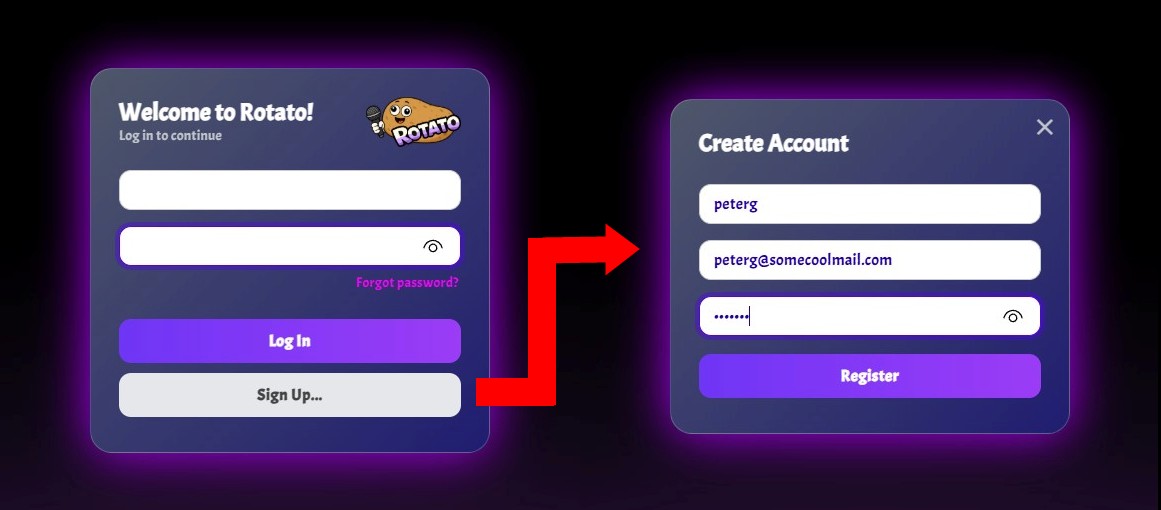
You should also provide an email address that you have access to. At the moment, this is used solely for resetting forgotten passwords. But it may become more important as new features get added.
3. Using the Editor
After logging in, you will see the main toolbar with an empty list below it...

Type a name into the "Performer" field and hit Enter (or press the "+" button). Repeat this a few times until you have a short rotation. You can also input a song name and artist name against each performer though this is completely optional.
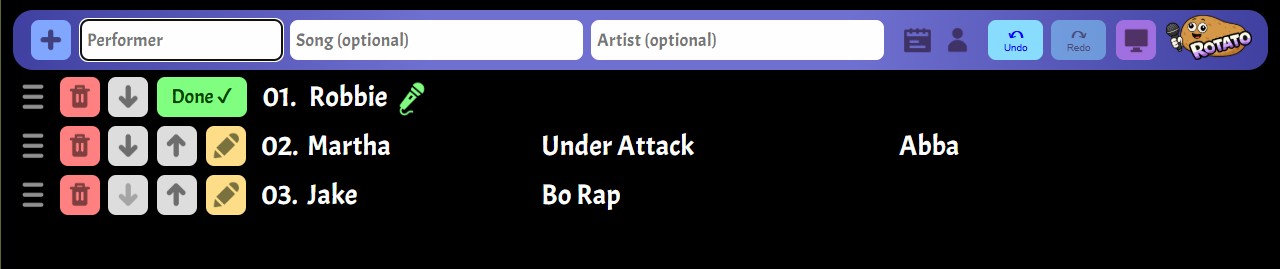
Each entry in the list has strip of buttons for: delete, move down, move up, edit details. There is also a ☰ grab handle at the edge for manually drag items to change their order.
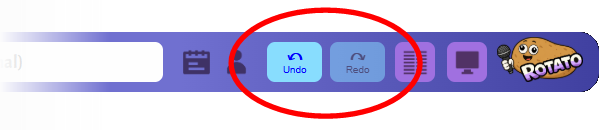
Note that if you ever make a mistake during a show (for example accidentally deleting a performer), don't worry because Rotato has unlimited undo/redo. Just use the buttons in the main toolbar to fix the problem...
4. Running the Rotation 💎
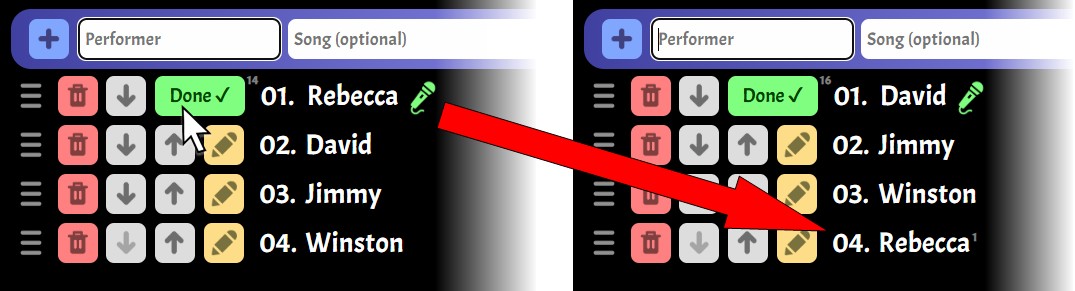
The top-most item in the performer list is special, as it represents the performer currently on stage (as indicated by the green microphone). When that performer has finished performing, click the "Done" button. This moves them to the bottom of the queue, and wipes their song/artist info. The editor will also update that performer's "songs sung" counter (next to their name) as well as the "total songs sung" counter (next to the Done button).
...and that's it, you're an expert Rotato user now!
5. Peace of Mind
For any show host, the rotation list is a mission-critical element. So we've engineered and field-tested Rotato to be as robust as possible. Your current rotation list (and even the undo/redo history) is always stored safely on the Rotato server. So even if you hit Refresh, close the browser, or have to restart your device, the list will be waiting for you once you reconnect. The Editor will usually not even bother asking for your Log-In details again, it remembers that you were already logged in.

Because Rotato is an online tool, you may also be worried about what happens if you lose your Internet connection during a show. If this happens, the Rotato editor will temporarily go into "offline mode". Your rotation list will still be visible, but it will be read-only until a connection can be re-established. The editor automatically re-tests the connection every few seconds until the Internet comes back.
6. Next Steps
Now that you've got the editor up-and-running and know how to run a basic rotation, please explore the rest of our online help and tutorials to discover all the other features of the Rotato system. You should also check our News page regularly for information about new features, or connect with the Rotato communbity via our Discord server.