1. Overview of the Rotato Window
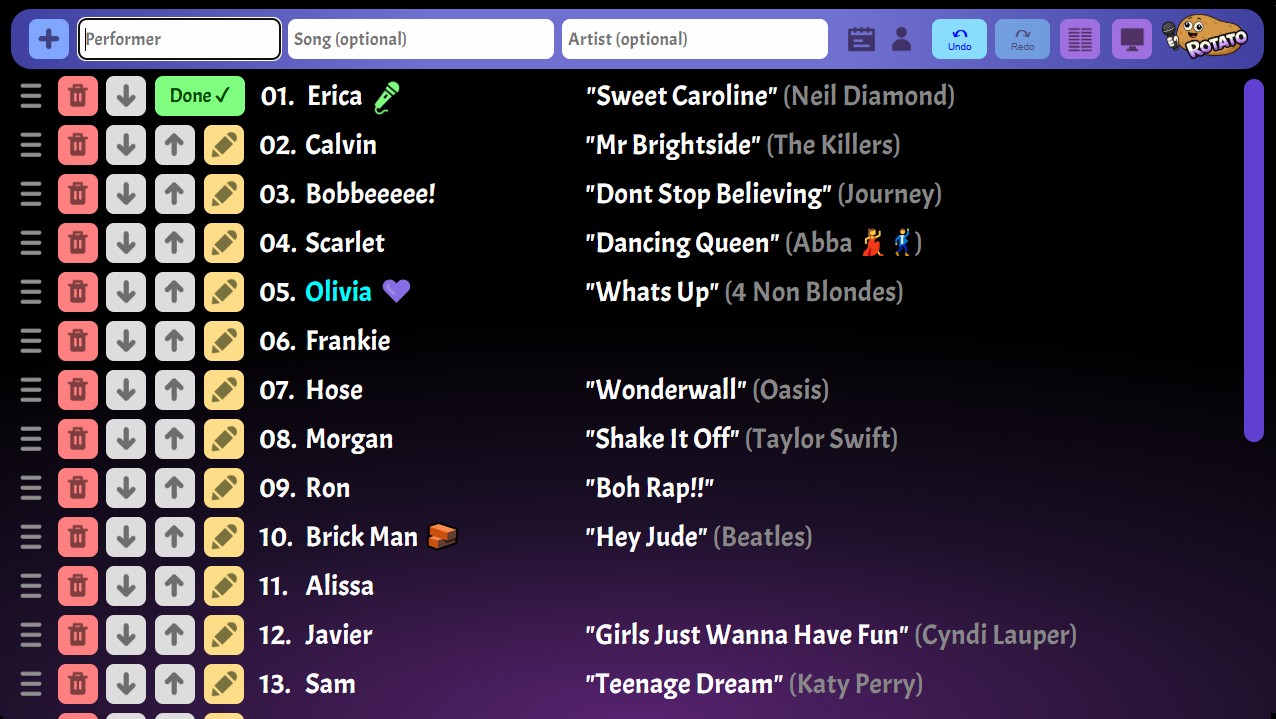
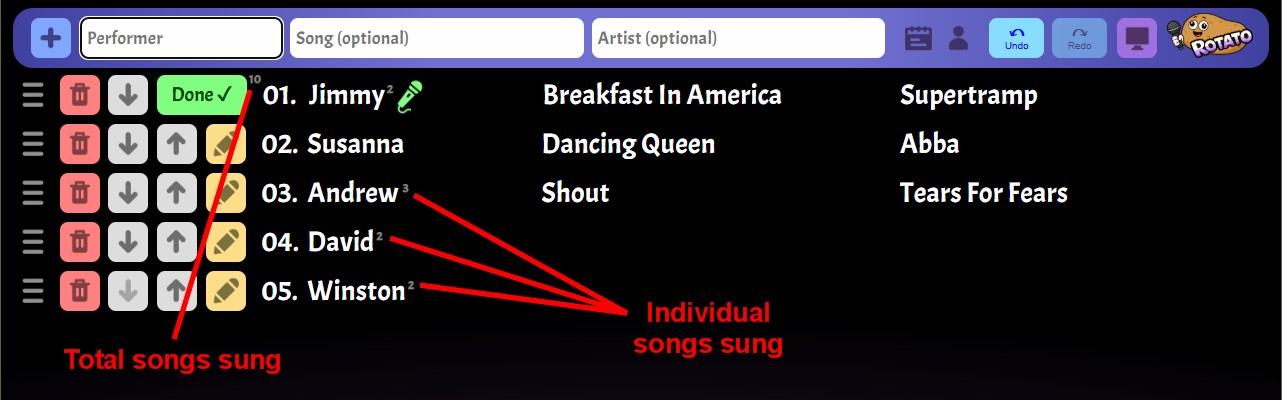
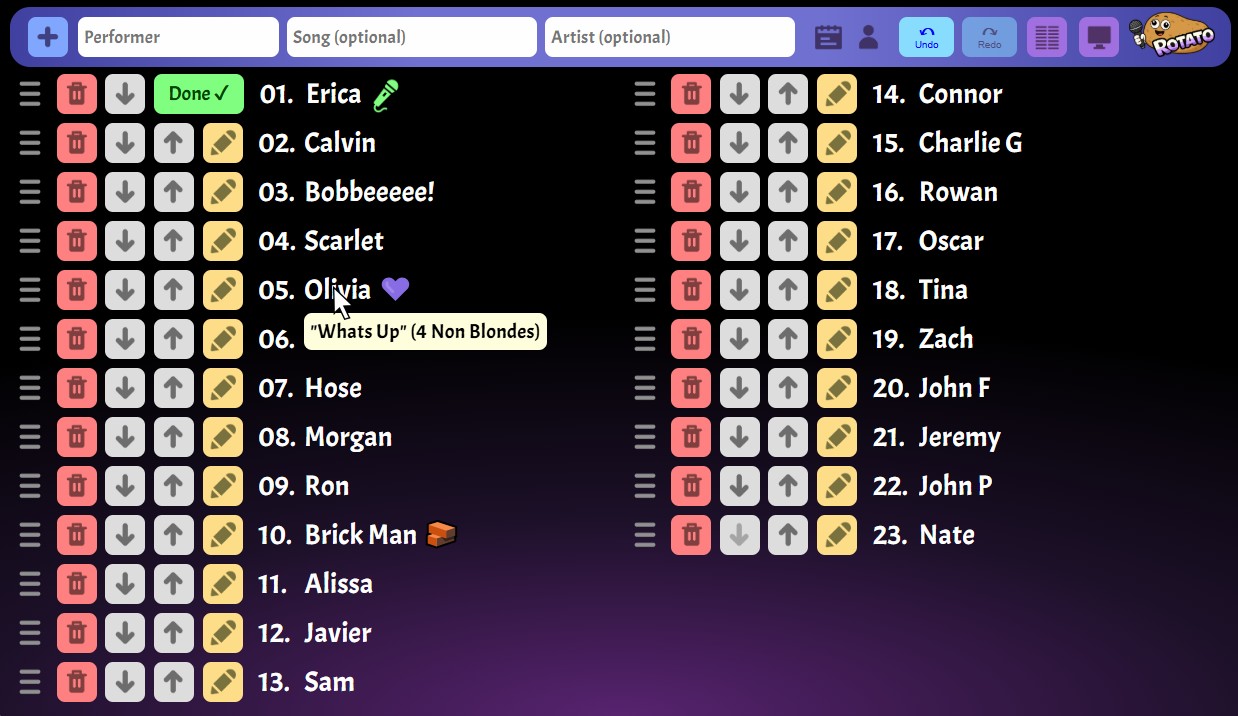
Filling most of the Rotato window is a scrollable list of performers. This is the performer queue, showing the order that you intend to bring performers to the stage. Next to each performer's name, you can optionally include a song name and artist. On the left are buttons for making changes to individual entries. At the top is the toolbar, where performer info is entered, and broader actions can be performed.
2. Performer Input Area
To add a new performer to the queue, simply enter their name and optional song/artist and hit Enter or press the "+" button. The performer will be added to the bottom of the queue and the list will scroll to make that entry visible. The keyboard cursor will remain in the performer name field, allowing you to enter multiple performers rapidly in succession. The Tab key can also be used to move to the next field, further speeding up the process.

Rotato will automatically beautify the performer, song and artist names (eg. applying initial caps, removing excessive whitespace, shortening "and" to "&", and so on). This frees you up to simply type the information in quickly without having to worry about formatting. This also helps ensure that any publically visible queue stays neat and tidy.

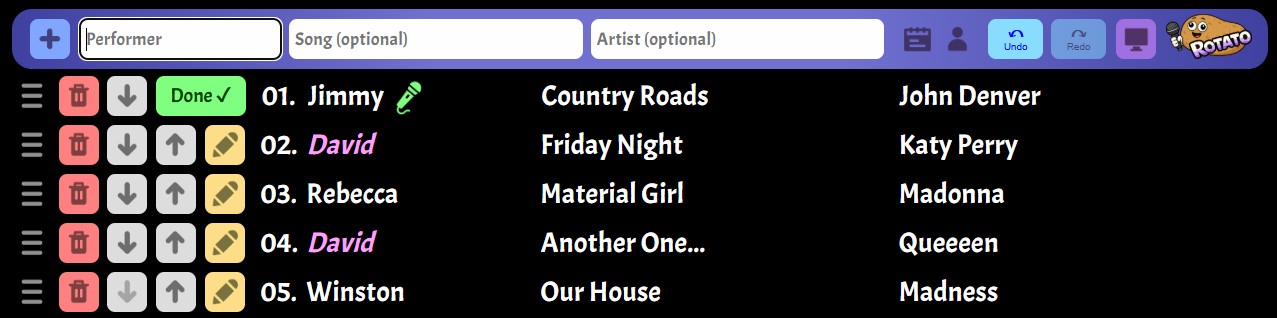
If you try to add a performer with the same name as a performer already in the queue, the input area will give you a warning (above). This is important because you don't want two people come to the stage when their name is called! Duplicate names are also highlighted in the queue in pink (below).
3. Editing The Queue
To the left of each entry are buttons for: deleting the entry, moving the entry down or up one position, or editing the entry's performer/song/artist names (below). There is also a ☰ grab handle for manually dragging an entry to any position in the queue.

3. Rotating Performers 💎
The top-most entry in the queue represents the performer currently on stage (as indicated by the green microphone). This entry has a special Done button. Press the Done button when that performer has finished their song. The performer is moved to the bottom of the queue, and any song or artist associated with them is erased.
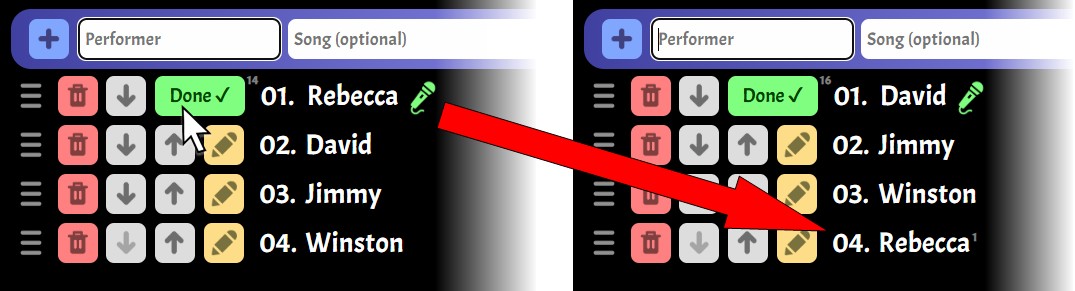
This feature is part of Rotato's core philosophy of stable singer rotation and a performer-oriented rather than song-oriented queue. Performers do not fall off the queue once their song is complete. And performers are not required to "stuff" the queue with multiple song requests in order to stay in the rotation.
5. Song Counters
As a show progresses and more performers rotate through the queue, Rotato maintains a count of how many songs each performer has sung, as well as the total number of songs sung. This can be useful for deciding whether to bump a newly arrived performer up the queue above performers who have already performed several times.
6. Undoing Mistakes
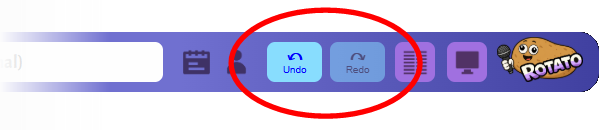
Rotato supports unlimited undo and redo of any changes you make to the queue, allowing you to avoid embarassing mistakes that can occur in chaotic live show situations! The undo and redo buttons can be found in the main toolbar.
7. Full Screen Mode
For browsers that support it, Rotato can operate in full screen mode, causing all the normal browser UI to be hidden, and making Rotato fill the entire screen. To enter full screen mode, press the purple button on the main toolbar (below).
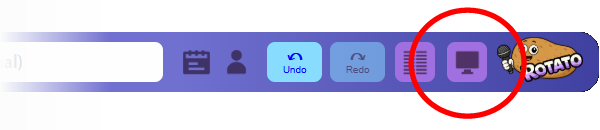
Pressing the purple button again will cause Rotato to exit full screen mode. Your browser will also have its own way of exiting full screen mode (usually a special key or swipe gesture).
8. Compact Mode
Compact mode is useful for displays with more limited space (such as tablets). In this mode, the song/artist details are hidden and the queue is displayed across multiple columns. To turn compact mode on or off, press the purple button on the main toolbar (below).
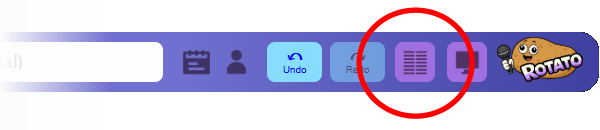
To see the song/artist details for any singer, simply click on their name...
9. The Live Queue
One of the coolest features of Rotato is the ability to display the live performer queue on any web-connected devices (no special app install or network configuration is necessary). Instructions for setting this up are covered in the Live Queue guide.

10. Managing Your User Account
To use Rotato, you need to be a registered user and logged in. Registration and logging in are covered in the Getting Started guide.
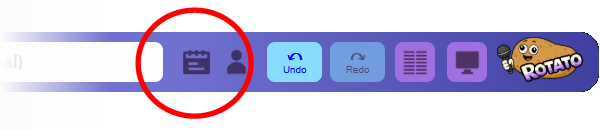
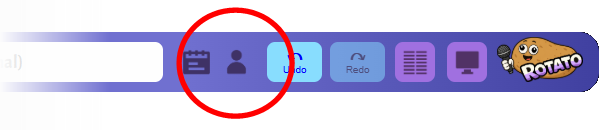
If you forget your password, there is a "forgot password" link on the Log In screen. To change your password, see who you are currently logged in as, or to log out, use the Account screen accessed from the main toolbar (below).
11. Show Schedule Features
Rotato let's you enter your weekly show schedule, allowing it to provide real-time reminders and warnings relating to the start and end of each show. These are covered in the Scheduling Features guide. The show schedule is accessed from Schedule screen on the main toolbar (below).